
A Guide to FeatureScript Inputs

Developing a custom feature in Onshape starts by answering 2 basic questions: what is the input, and what's the output? The output is usually pretty easy to answer, the feature needs to make some geometry. Designing the inputs for a custom feature takes a lot of experience and experimentation. A balance between holding the hand of the user and giving them flexibility.
Knowing what FeatureScript supports can help designers discuss with developers their requirements to make super useful features. This is a guide of all the possible inputs for Onshape Custom Features.
Dimensions
The most common inputs - dimensions.
Length
Length inputs are one of the most common. They accept inputs of any linear units or equations. On the back end you can set a minimum, default, and maximum value. Defaults can set dependent on the user's units.

Angle
Same as a length input, but for angular inputs.

Count
The count input accepts only integer number inputs. Same as the length input, it also has a minimum, maximum, and default value.
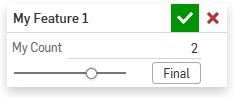
Real Numbers
Similar to the Count parameter, with the exception that it accepts real value inputs.

Queries
Queries (or selections) are the input method for geometry input. Queries support vertices, edges, faces, or bodies. Queries can be limited by the number or types of selections. Selections can be limited to geometry types, such as only planar faces, only circular edges, or solid bodies. Query selection restriction is important to ensure that users not only select only valid geometry, but also to make the selections easier to make.
Selected items are highlighted in Orange.
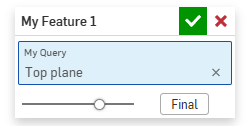
Mate connector creation can be supported if the required option is included.

Boolean
Booleans generally show up as checkboxes with a true or false state. With some UI Hints, they can be made to look like flip arrows.

String
Free text input. Useful for text features, metadata setting (such as names), or some weird work around.

Enums
Enums are a list of predefined options. Enums cannot be created at runtime and must be a predefined list. Typically appearing as a drop down menu, but they can also be made into a horizontal tab style item like in the extrude feature.


Lookup Tables
Look up tables are a combination of options where the previous selects modify the next possible options. Visible in the standard hole feature, selecting hole type will change what sizes and options become available.

Anything
The "Anything" type is a grab bag parameter that allows any data type for input. Typically used as a hidden parameter for solving other automation challenges such as passing data from editing logic to the main feature body.

Parameter Arrays
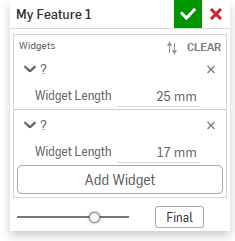
Arrays of parameters act as repeatable groups of inputs. Useful when a feature makes multiple unique operations. Array parameters can be a trap for feature complexity, its always important to consider if the functionality should exist in a single feature as an array input, or as individual features in the feature tree.
Parameter arrays cannot be nested, and the length of the list can be fixed (removing the "add Widget" button).
Selection Driven Arrays
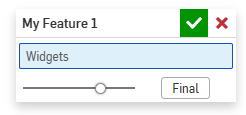
Similar to a parameter array, a query is used to drive the items of the array. Each selection becomes a new item in the array.

Feature Lists
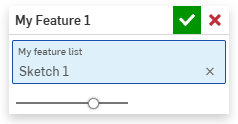
The feature list allows selection of features from earlier in the feature tree. Pretty much only useful to either pattern or evaluate geometry created/modified by those features. The definitions of those features cannot be read.
Reference Parameters (Part studio, image, CSV, JSON)
Reference parameters allow the selection of outside part studios or imported files. Selected files need to be already imported into Onshape and cannot be directly imported in a feature input.
Referenced part studios do have limited use. The part studio can be derived into the current part studio, useful for "templating" or standardizing design elements. The referenced part studio can't be modified from this feature, effectively read only with the only options to modify being the configuration input.

Parameter groups
Parameter groups are used to compact sections of a FeatureScript UI. As features grow in complexity, one challenge is simply organizing the inputs. A combination of editing logic and enums can also achieve similar results, but parameter groups are the simplest.

Buttons
Buttons can be seen in the routing curve feature. While buttons have no parametric value, they are used with editing logic to create unique input workflows.

UIHints
Each individual parameter in a FeatureScript can have additional options to modify their behaviour or appearance.
For example, the flip direction input seen in the extrude feature is just a boolean with the Opposite Direction option enabled.

There are currently 38 different UIHints:
OPPOSITE_DIRECTION, ALWAYS_HIDDEN, SHOW_CREATE_SELECTION, CONTROL_VISIBILITY, NO_PREVIEW_PROVIDED, REMEMBER_PREVIOUS_VALUE, DISPLAY_SHORT, ALLOW_FEATURE_SELECTION, MATE_CONNECTOR_AXIS_TYPE, PRIMARY_AXIS, SHOW_EXPRESSION, OPPOSITE_DIRECTION_CIRCULAR, SHOW_LABEL, HORIZONTAL_ENUM, UNCONFIGURABLE, MATCH_LAST_ARRAY_ITEM, COLLAPSE_ARRAY_ITEMS, INITIAL_FOCUS_ON_EDIT, INITIAL_FOCUS, DISPLAY_CURRENT_VALUE_ONLY, READ_ONLY, PREVENT_CREATING_NEW_MATE_CONNECTORS, FIRST_IN_ROW, ALLOW_QUERY_ORDER, PREVENT_ARRAY_REORDER, VARIABLE_NAME, FOCUS_INNER_QUERY, SHOW_TOLERANCE, ALLOW_ARRAY_FOCUS, SHOW_INLINE_CONFIG_INPUTS, FOCUS_ON_VISIBLE, CAN_BE_TOLERANT, CAN_BE_TOLERANT_DIAMETER, PLUS_MINUS, ALWAYS_USE_DEPENDENCIES, NO_QUERY_VARIABLE, ALLOW_FLAT_SKETCH_SELECTION, QUERY_VARIABLE_NAME, HIDE_LABEL
I most commonly use the Always Hidden, Opposite Direction, and Read Only options.
Dynamic Feature Names
Feature names can be set in the body of the feature to allow for intelligently named features. No more "My Feature 6"adding confusion to the design process.

Feature Errors
Errors in the feature can be reported to the user in a few different ways:
Warning messages
These messages show as a popup when the feature is opened, and colour the feature red in the feature tree.

They also come in an information level that appears without the feature tree colouring.

Its also possible to highligh which entities and parameters are causing specific problems.

Editing Logic
The main body of a feature is the code that runs after selections are made. There is no "stopping" a feature for further user inputs. A user's inputs are all set at the start of the feature's logic. Editing logic is a special function used to create "intelligent" inputs for a feature. Editing logic cannot create any geometry, it can only set a feature's input.
In the example below, I've created a dynamically visible parameter by using editing logic to check if the length is over 30mm, and setting a hidden boolean parameter.
Editing logic is only triggered when a user modifies one of the inputs in the feature. Its important to note that things like configurations and the API do not trigger editing logic.

Manipulators
Manipulators are often overlooked in the toolbox of user inputs. Most features don't require them; but they can be quality of life improvements. In some cases, manipulators can be the savior of a confusing, difficult, or just clunky feature. I really like how creative you can be with manipulators. They are a tool box of options to solve problems.
Point
The point manipulator returns the index of the point (from a list of points) the user selected. These are useful when the user needs to make a choice from a specific set of options.

Toggle Points
Toggle points work very similarly to the point manipulator, except that the result is a list of selected points instead of a specific index.

Flip
Flip manipulators are useful for allowing a user to pick a side. Automatically picking a correct side can be difficult in FeatureScript but easy for a user.

Linear
One of the most commonly seen manipulators. Almost impossible to miss in features like extrude. The interesting thing about linear manipulators is that it specifies a direction and an offset. You aren't locked to the axis, it can change dynamically, so it is possible to have a linear manipulator follow along a line.

Angle
Specify an axis of rotation and a radius to set the manipulator arrow to.

Triad
Triad manipulators are useful for allowing a user to select a specific point, or alter dimensions in a coordinate system.

Full Triad
Used to specify locations and orientation. Commonly used in spline generation or part placement.

Is this all a bit overwhelming? SmartBench Software is here to help. As experts in Onshape automation, FeatureScript, and integrated applications, we can help navigate the difficulties of automating Onshape. Reach out for more info.


Comments